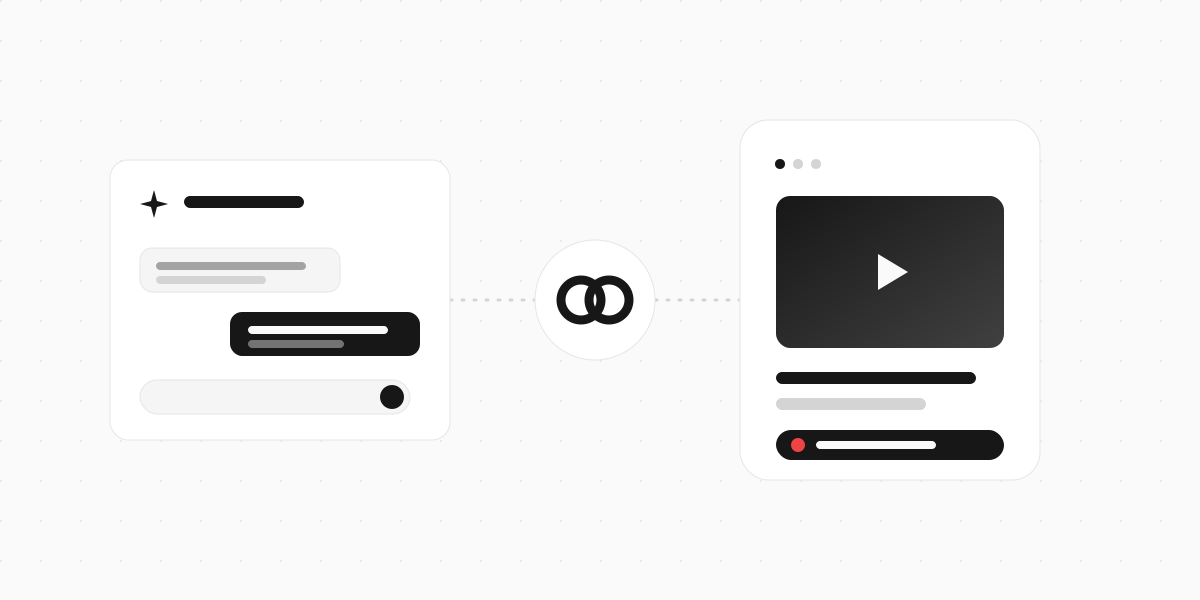
Claude connectors are integrations that let Claude access your apps, retrieve your data, and take real actions inside them without leaving the chat. Connect one and Claude can search your Gmail, add a page to Notion, or pull a file from Google Drive, using only the access you already have. You describe the task in plain language, and Claude does the work in the connected app instead of just telling you how to do it yourself.
Think of a connector as a bridge. On one side is Claude. On the other is an app like Gmail, Slack, or Notion. The connector lets the two talk, so "summarise my unread emails" or "add this to my project board" actually happens.
This guide covers what connectors are, how they work, which Claude plans have them, and how to add one. Then we'll walk through a real example: adding a connector that builds a form for you from a sentence, no dragging fields around a canvas.
What a Claude connector actually does
Anthropic keeps the definition short. Connectors "let Claude access your apps and services, retrieve your data, and take actions within connected services," per Claude's own help docs.
The important word there is actions. A connector does more than look things up. Depending on the app, Claude can create, update, and send things on your behalf. A few examples of what people connect:
- Gmail - search your inbox, summarise a thread, draft a reply
- Slack - find a message, pull the decisions out of a busy channel, draft a response before anything is posted
- Notion - search your workspace, create pages, cross-reference notes across databases
- Google Drive - search your files and pull the right doc into the conversation
Once an app is connected, you don't have to name it every time. Claude brings the right connector into a conversation on its own when it fits what you're asking. Ask about a customer and it can check the CRM. Ask about last week's meeting and it can search your notes.
One thing worth knowing up front: Claude only gets the access you already have. It can't exceed the access level you hold in that app, so a connector can't see files or channels you couldn't see yourself.
How connectors work under the hood
Every connector runs on the same open standard: the Model Context Protocol, or MCP. You don't need to know anything about it to use a connector, but it explains why the same apps show up across different AI tools.
MCP is the plumbing. It's a shared language for "here's a tool, here's what it can do, here's how to call it." Anthropic open-sourced it, so an app only has to build one MCP server and it works with Claude, and with other assistants that speak the same protocol. That's the whole reason a connector directory can exist: apps build the bridge once, and any MCP-aware tool can cross it.
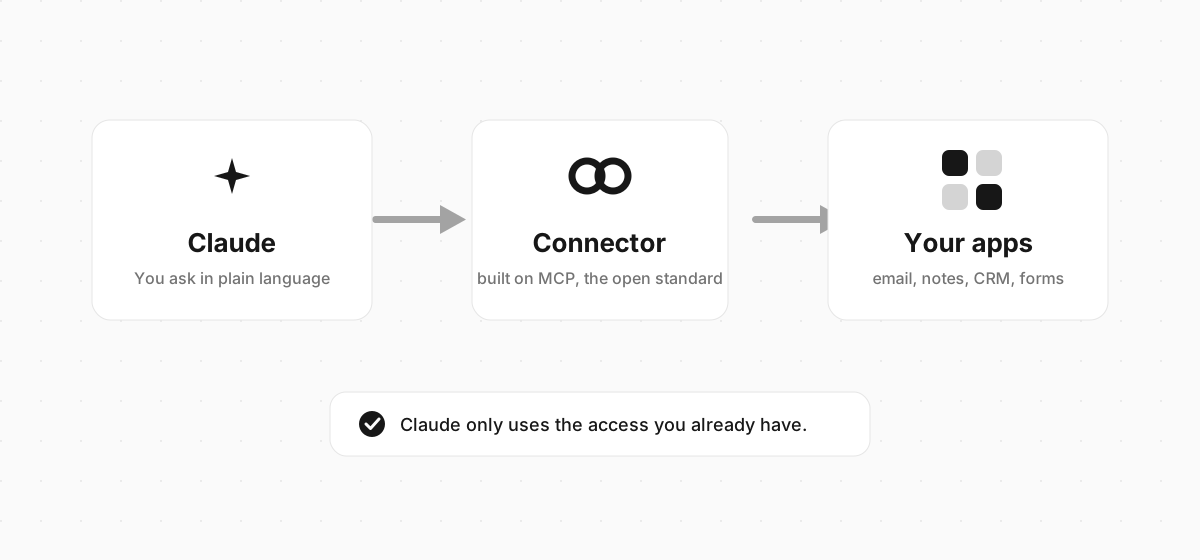
So when you hear "MCP server," read it as "the thing that powers a connector." The connector is what you turn on. MCP is how it works behind the glass.
Which Claude plans have connectors
Connectors work across Claude on the web, the desktop app, mobile, and Claude Code. The plan details are worth checking before you start:
| Plan | Connectors |
|---|---|
| Free | Custom connectors supported, limited to one |
| Pro | Ready-made and custom connectors |
| Max | Ready-made and custom connectors |
| Team / Enterprise | Managed by an owner in organisation settings |
Custom connectors using remote MCP are available on Free, Pro, Max, Team, and Enterprise plans, with free accounts capped at a single one. If you want to connect more than one app, that's the line to keep in mind.
Two kinds of connector
There are really only two ways a connector gets into your Claude account.
Directory connectors are the ready-made ones. Anthropic runs a connector directory of popular apps across dozens of categories, from developer tools to CRMs to creative software. You browse, click connect, sign in, and you're done. No URLs, no setup.
Custom connectors are the ones you add yourself by pointing Claude at a web address. Any app that runs a remote MCP server can be added this way, whether or not it's in the directory. This is the route for a tool you use that isn't listed yet, or an internal one your team built.
The good news is that adding a custom one is almost as easy as picking from the directory. Here's how.
How to add a custom connector
The steps are the same for any custom connector. All you need is the app's connector URL.
- In Claude, head to Settings → Connectors (some plans label it Customize → Connectors).
- Click the + and choose Add custom connector.
- Paste the app's remote MCP server URL.
- Sign in to that app and approve the access Claude is asking for.
That last step is an OAuth sign-in, the same "sign in with..." flow you've used a hundred times. Claude never sees your password, and you can pull the access back later from either Claude's settings or the app itself. If you're on a Team or Enterprise plan, an owner adds the connector once in organisation settings and everyone else just clicks connect.
💡
A custom connector needs a public web address, because Claude connects from Anthropic's servers, not your laptop. A tool running only on your own machine can't be added this way - it needs to be reachable over the internet.
A real example: build a form just by asking
Explaining connectors is one thing. The fastest way to get why they're useful is to actually do something with one. So let's build a form without opening a form builder.
Clipform is a video-first form builder with a Claude connector you add by URL. Once it's on, you describe the form you want and Claude builds it in your workspace, questions and flow and all. It's a good example because the payoff is obvious in one message.
Step 1: Add the connector
Follow the steps above and paste in the Clipform connector URL:
https://mcp.clipform.io
Sign in to Clipform, approve access, and you're connected. New forms land straight in your account. (There's a full walkthrough in the Clipform docs if you want the screenshots.)
Step 2: Describe what you want
Now just ask. The more specific the ask, the better the first draft:
Create a customer feedback form with a short video intro, a multiple choice question about what they bought, and an open question asking what we could do better. Finish with a thank-you screen.
Claude reads that, calls the connector, and builds the whole thing: the questions, the field types, the order, and the copy. You get a link back to try it in seconds.
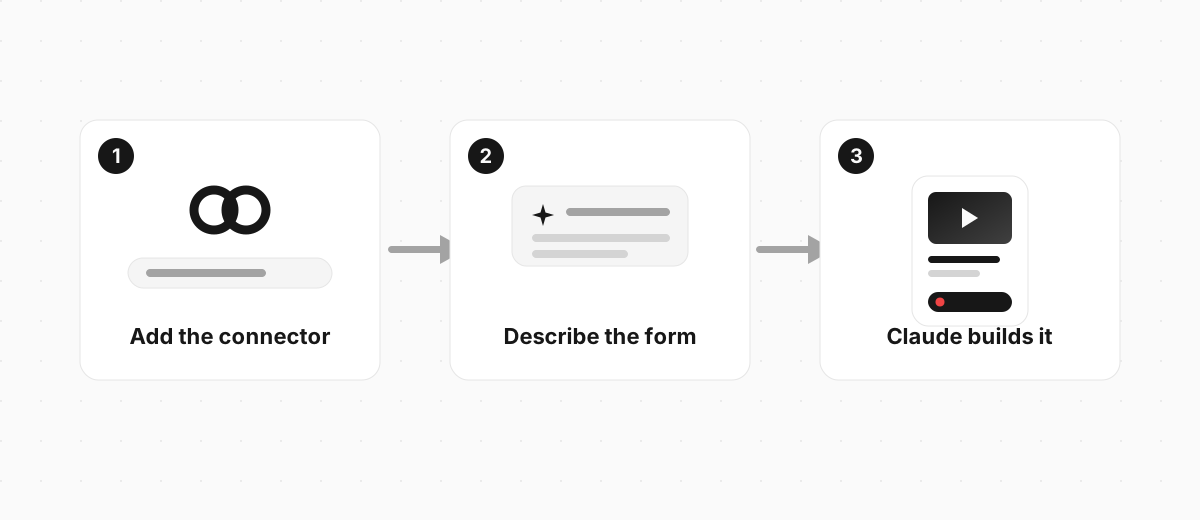
Step 3: Refine in the same chat
You don't have to get it right in one message. Keep talking:
- "Add narration that reads each question aloud."
- "Use a dark theme with blue accents."
- "Make the second question multiple choice instead."
Each request updates the form in place. This back-and-forth is the part a directory listing never shows you, and it's where connectors earn their keep. You're not filling in settings. You're describing an outcome and letting Claude handle the clicks.
Here's the kind of form that comes out the other end. This is a real Clipform, the same shape Claude builds when you ask:
Try a form built the connector way
A short feedback form with a video question, built on Clipform.
Welcome
How long a customer
Record a video answer
Your details (optional)
Give it a go - your answers won't be stored.
Copy this templateTry a form built the connector way
A short feedback form with a video question, built on Clipform.
Welcome
How long a customer
Record a video answer
Your details (optional)
Give it a go - your answers won't be stored.
Copy this templateVideo and audio answers come back transcribed, so you can skim the text and click into the clip when something's worth watching. And because it all happened in chat, there was no builder to learn. That's the shape of a good connector: it takes a job you'd normally do in another app's interface and folds it into the conversation.
Getting more out of connectors
A few habits make connectors far more useful, whichever apps you connect. The biggest gains come from being specific about what you want and letting Claude pick the right connector for the job, rather than naming it yourself. These four are worth building in from the start:
- Be specific. "Make a quiz" works. "Make a 5-question quiz about space with multiple choice answers and a results screen at the end" works much better. Vague asks get vague results.
- Let Claude pick the connector. You rarely need to say "use the Gmail connector." Describe the task and Claude reaches for the right one.
- Combine them. The real unlock is chaining. Pull a list from one app, draft something from it, drop the result in another. Two connectors in one chat beats copy-pasting between tabs.
- Only connect what you trust. Each connector is real access to a real account. Connect the tools you actually use and skip the rest. You can revoke any of them in a couple of clicks.
FAQ
Do Claude connectors cost extra?
No. Connectors are part of your Claude plan. Free accounts can add one custom connector; paid plans add as many as you like from the directory or by URL.
What's the difference between a connector and MCP?
MCP is the open standard underneath. A connector is a single app connection built on it. MCP is the plumbing; the connector is the tap you turn on. You interact with connectors and never have to think about MCP directly.
Are connectors safe to use?
Yes, within limits you control. You approve every connector with a sign-in, and Claude only gets the access you already have in that app, so it can't reach anything you couldn't reach yourself. You can revoke a connector at any time from Claude's settings or from the app.
Can I build my own connector?
Yes. Any app with a remote MCP server can be added as a custom connector by URL, and teams build internal ones the same way. If a tool you use isn't in the directory yet, check whether it offers a connector URL, then add it with the steps above.
Start with one connector
Claude connectors turn Claude from an assistant that talks about your tools into one that uses them. Pick a single app you touch every day, connect it, and give Claude a real job in it. That first "oh, it actually did the thing" moment is the one that sticks.
If you want an easy one to start with, building a form is about as satisfying as it gets, because you go from a sentence to something you can share in one message. Clipform adds by URL and its AI builds the whole form for you, video questions and all, and it plugs into other tools beyond Claude too. Our guide to the AI form builder digs into what that looks like when the form is the thing you're making.