Jotform has a built-in QR code generator, so you don't need a third-party tool. You can create one directly from the Publish tab in the form builder and download it in seconds.
That said, Jotform's built-in generator is basic. If you need a branded QR code with your logo, custom colours, or a specific file format, you'll want a free external generator instead. This guide covers both approaches, plus the sizing and placement tips that affect whether people actually scan your code.
Method 1: Jotform's built-in QR code generator
This is the fastest route. A few clicks, no other tools needed.
- Open your form in Jotform's form builder
- Click the Publish tab in the top navigation bar
- In the Share Form section, open Quick Share (or click View More)
- Click the QR code option, then Download
That's it. Jotform generates a QR code that links directly to your form's URL. Download the image and you're ready to print it or drop it into a presentation.
What you get (and what you don't)
Jotform's built-in QR code is a standard black-and-white square. It works, but you can't change the colour, add a logo, or adjust the pattern. If you need something that matches your brand or stands out on a poster, you'll need Method 2.
You also don't get scan tracking with the built-in option. You won't know how many people scanned versus how many actually submitted the form. For that, you'd need either Jotform's analytics (which tracks form views) or a QR code generator with built-in scan tracking.
Method 2: Use a free QR code generator
If you want more control, grab your form's share link and paste it into an external generator.
Get your Jotform share link
- Open your form and click the Publish tab
- Under Share Form, click Copy Link
- You'll get a URL like
https://form.jotform.com/your-form-id
Generate the QR code
Paste that link into any free QR code generator. These work well and don't require an account:
- QRCode Monkey - free, no watermark, lets you add colours and a logo
- ME-QR - simple interface, exports as PNG or SVG
- QR Code Generator - clean, supports dynamic codes on paid plans
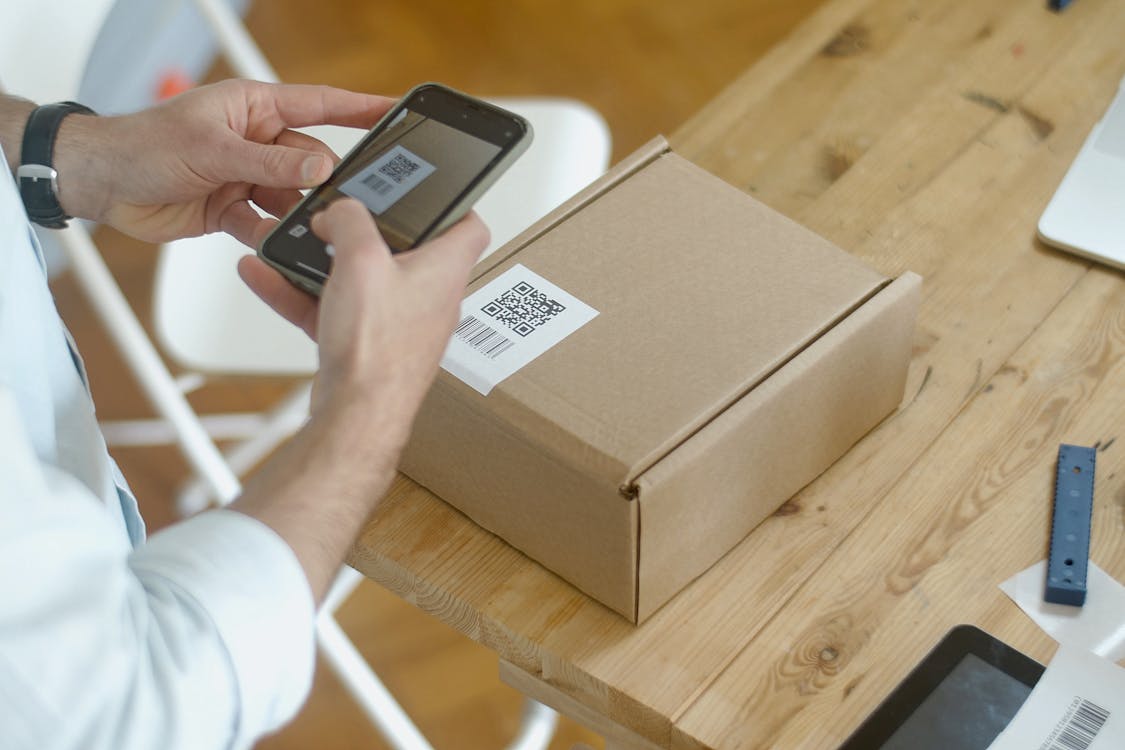
The process is the same for all of them: paste the URL, customise the design if you want, download the image.
Customising your QR code
If you go the external generator route, you have a few options that Jotform's built-in tool doesn't offer:
Add your logo. Place a small logo in the centre of the QR code. QR codes have built-in error correction, so covering up to 30% of the pattern won't break the scan. Keep the logo small and high-contrast.
Change the colours. Swap the standard black for your brand colour. One rule: the foreground (the dots) must be darker than the background. A dark blue code on a white background scans fine. A yellow code on a white background won't.
Round the corners. Some generators let you change the dot shape from square to rounded. This is purely cosmetic, but rounded dots look more modern on marketing materials.
Choose the right format. PNG for digital use (websites, emails, slides). SVG for print (posters, flyers, business cards). SVG scales without getting blurry, which matters when you're printing a QR code on a banner.
Sizing and placement
A QR code that's too small or badly placed doesn't get scanned. Here's what works:
Minimum size
The general rule is 2cm x 2cm (about 0.8 x 0.8 inches) for codes scanned from arm's length. For posters or signage viewed from further away, scale up. A QR code on a conference banner should be at least 10cm x 10cm so someone three metres away can scan it.
Where to put it
| Placement | Works well for |
|---|---|
| Slide deck (closing slide) | Presentations, workshops, webinars |
| Table tents / cards | Restaurants, conferences, reception desks |
| Posters and flyers | Events, retail, public notices |
| Email signature | Ongoing contact or feedback forms |
| Product packaging | Warranty registration, review requests |
| Receipts | Post-purchase feedback, loyalty programs |
The best placement depends on when you want people to fill out the form. If it's a feedback form, put the code where people will see it right after the experience (the exit door, the receipt, the last slide). If it's a registration form, put it where people are making the decision to sign up (the event poster, the brochure, the social media post). The same logic applies to printed stationery - a QR code RSVP on a wedding invitation belongs on the RSVP card itself, where guests are already deciding to reply.
💡
Always test your QR code before printing it. Scan it with at least two different phones (one iPhone, one Android) to make sure it loads the form correctly. A broken QR code on 500 printed flyers is an expensive mistake.
Add a call to action
A QR code by itself is just a square. People need a reason to scan it. Always add a short prompt next to the code:
- "Scan to register"
- "Tell us how we did"
- "Sign up in 30 seconds"
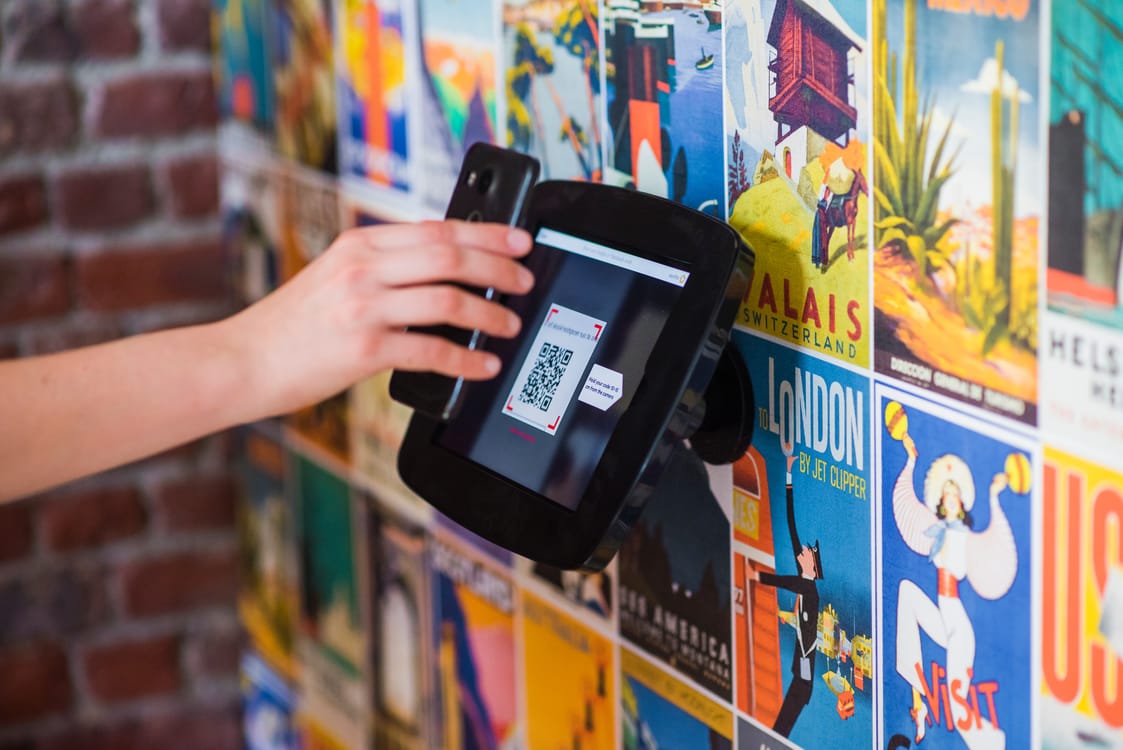
According to QR TIGER's 2026 report, 91% of iPhone users and 86% of Android users have devices that scan QR codes natively through the camera app. Scanning keeps climbing, too: the same report logged a 211.5% year-over-year jump in scans. You don't need to tell people to download a scanner - just tell them what they'll get when they scan.
Common mistakes
Linking to a restricted form. If your Jotform requires login or is limited to specific respondents, anyone who scans the QR code without access will hit a wall. For public-facing forms, make sure the form is set to accept responses from anyone.
Printing too small. A QR code that's 1cm wide on a poster won't scan reliably, especially in low light. When in doubt, go bigger.
Not testing after printing. The QR code worked on screen, but the print shop compressed the image and now the code won't scan. Always do a test scan from the printed material before distributing it.
Forgetting to update the form. If you change the form's URL (by duplicating it or creating a new version), the old QR code will point to the wrong form or a dead link. Use the same form and edit it in place rather than creating a new one each time.
No mobile optimisation. QR codes are scanned on phones, which means the form opens on a mobile screen. If your form has tiny text fields, horizontal scrolling, or elements that don't resize, you'll lose respondents at the first question. Preview your form on a phone before generating the QR code.
Other ways to share a form as a QR code
The same process works for any form builder that gives you a share link. Copy the URL, paste it into a QR code generator, download the image. If you're using a different tool, we've got a step-by-step guide for Google Forms QR codes too. And for a broader look at using QR codes for surveys and feedback collection, see our QR code survey guide.
Clipform gives you a share link for every form you build. Paste it into any free QR code generator and you've got a scannable code in seconds. The difference is what happens after the scan - respondents can record video answers, not just type text, which means richer responses from a form that fits on a phone screen. If the QR code is the only thing keeping you on Jotform, it's worth seeing the full Jotform alternative comparison.