
Google Forms can collect almost anything except money. There's no payment question, no built-in Stripe or PayPal, no "add a card field" button hiding in a menu. So if you're trying to take a deposit, sell a ticket, or collect a class fee, you have to bolt payment on from the outside.
There are three ways people do it: install a payment add-on, drop a payment link in the confirmation message, or move to a form that takes the card itself. This guide walks through each one, what it costs you in friction, and when the workaround isn't worth it at all.
Does Google Forms have a payment option?
No. Google Forms has no native payment field and no official Stripe, PayPal, or Square integration. Google built it as a survey and quiz tool, and it has stayed that way.
That's why every method below sends the actual card entry somewhere else: an add-on's hosted page, a Stripe link, a QR code to your phone. The form gathers the answers. Something else gathers the money. Keep that split in mind, because it's the root of most of the pain later.
How to add payments to Google Forms
Four workarounds cover almost everyone. Here's how each one works and what you give up.
Use a payment add-on
The closest thing to "native" is a Google Workspace add-on. Payable is a popular one, and it connects PayPal, Stripe, or Square to your form. You install it from the Marketplace, connect your processor, and it adds a checkout that fires after someone submits. It can even total up the price based on the options people picked.
The trade-off: you've now got a third-party tool sitting between your form and your money, on top of Google itself. That's another account, another subscription in most cases, and another thing that can break on a Sunday.
Add a payment link to the confirmation message
The no-add-on version. Create a Stripe Payment Link or a PayPal.me page, then paste it into your form's confirmation message so people see it right after they submit.
It's quick and free to set up. The catch is that nothing joins the payment to the response. Someone can fill the form and never click the link, and you're left matching up who actually paid by hand. Fine for a handful of orders. Painful past that.
Drop in a payment QR code
For informal stuff (club dues, a team whip-round, classroom supplies) you can add an image of a Venmo, Cash App, or PayPal QR code to a question or the confirmation screen. People scan and send.
There's no reconciliation, no reporting, and no real link back to the form. It works when everyone already trusts each other. It is not a checkout, and it won't feel like one to a paying customer.
Connect Google Forms to Stripe with automation
If you're comfortable with automation tools, Zapier or Make can watch for new Google Forms responses and trigger a Stripe charge or invoice. Pabbly and Formfacade do similar jobs.
This is the most flexible route and the most fiddly. You're now maintaining a form, a payment processor, and the glue between them. For a busy store, it can earn its keep. For a booking form, it's a lot of moving parts.
| Method | Free to start | Payment linked to answers | Best for |
|---|---|---|---|
| Payment add-on | Usually paid | Yes | Event sign-ups, merch |
| Payment link in confirmation | Yes | No | A few one-off orders |
| Payment QR code | Yes | No | Informal, trusted groups |
| Automation (Zapier / Make) | Depends | Via glue | High volume, technical |
| Payment step in the form | Free tier | Yes | Taking money in the form |
The catch with every Google Forms workaround
Every method above has the same shape. The form lives in one place and the payment lives in another. Your answers land in Google Sheets. Your money lands in Stripe, PayPal, or your phone. Nothing joins them unless you do it yourself.
That split costs you twice.
First, reconciliation. You end up cross-checking a spreadsheet against a payout report to see who paid and who ghosted. It's dull, it's error-prone, and it gets worse the more orders you take.
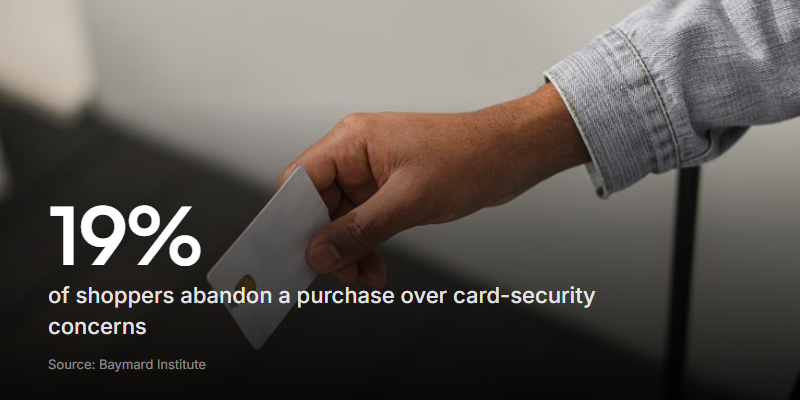
Second, and worse, it costs you sales. Every extra hop (submit here, now go pay over there) is a fresh chance for someone to drop out. Baymard Institute found that 19% of shoppers abandon a purchase because they don't trust the site with their card details. An unexpected hand-off to a link or a QR code is exactly the moment that doubt shows up.
Collect the payment inside the form instead
The workaround exists because Google Forms wasn't built to take money. A form builder that was doesn't need one.
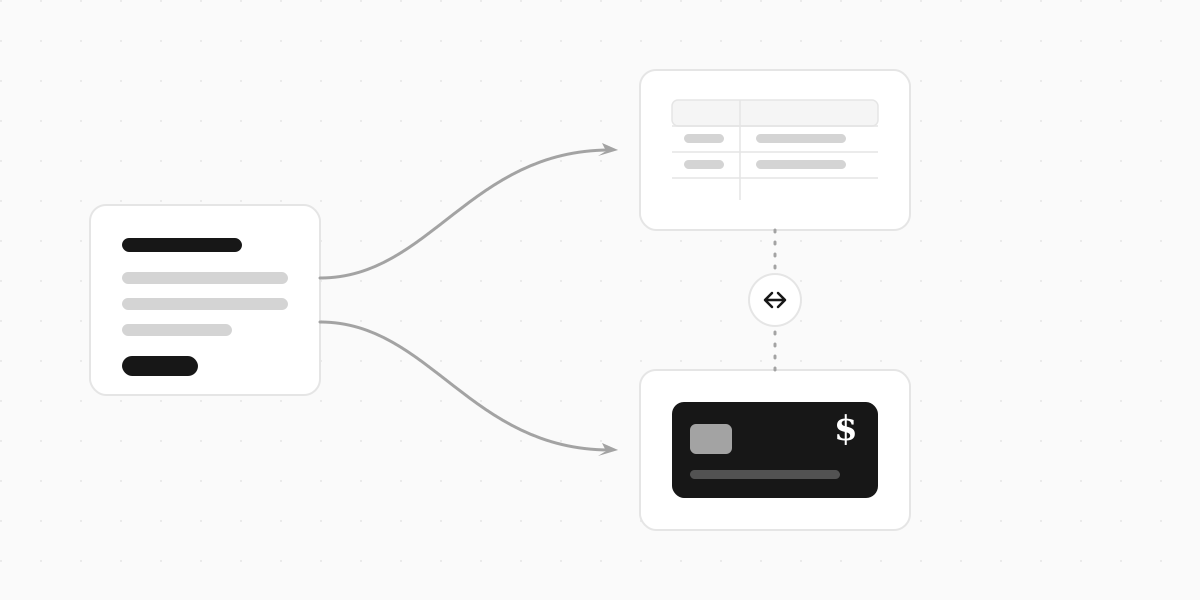
Clipform has a payment step you drop into the form itself. Someone answers your questions, enters their card on the same screen, and pays. No redirect, no "you'll now be taken to our payment partner", no second link to chase. The answers and the payment arrive together as a single record.
It runs on Stripe underneath, so the card details go straight to Stripe and never touch your form. The money settles in your own account, and refunds and payouts work like any other Stripe sale.
Setup is about four steps:
- Build your form and keep the questions tight.
- Add a Payment step, then set the amount and currency (USD, EUR, GBP, CAD, or AUD).
- Connect your Stripe account through Stripe's own onboarding, once.
- Switch the form live and share the link, a QR code, or an embed.
The money lands in your Stripe account, not ours. You're the merchant of record, so the charge, the payout, and any refunds all sit in your own Stripe dashboard like any other sale.
One honest limit: Clipform handles one-time payments (deposits, tickets, fees, donations), not monthly subscriptions. If you need recurring billing, a dedicated subscription tool is still the better call for now.
Already built the whole thing in Google Forms? You don't have to start over. Describe what you need and Clipform's AI can draft the form for you, then you add the payment step on top.
For the deeper build guide, see how to make a payment form. Collecting donations? The fundraiser form walk-through covers that case. And if you're weighing the two tools directly, the Google Forms alternative page lays out where they differ.
Common questions about Google Forms payments
Does Google Forms have a built-in payment option?
No. Google Forms has no native payment field and no official Stripe, PayPal, or Square integration. To take money, you add a Workspace add-on, drop a payment link in the confirmation message, or use a form builder that collects payment directly.
Is it safe to collect payments through Google Forms?
The form itself never handles card numbers, so safety comes down to the processor behind whichever method you use. An add-on or a Stripe Payment Link routes the card to a hosted checkout that handles the security. A QR code to a peer-to-peer app leans on that app instead.
What's the cheapest way to take payment on a Google Form?
A payment link in the confirmation message. It's free to set up and you only pay the processor's per-transaction fee. The trade-off is that you reconcile who paid by hand, since the payment isn't tied to the response.
Can I connect Google Forms directly to Stripe?
Not natively. You connect them through an add-on like Payable, or through an automation tool like Zapier or Make that triggers a Stripe charge when a new response comes in.
Can I take recurring or subscription payments?
Google Forms workarounds are built around one-off payments, so recurring billing is awkward at best. Clipform handles one-time payments today. For memberships billed every month, a dedicated subscription tool is the better fit.
Can I move my Google Form to something that takes payments?
Yes. Rebuild it in a builder that has a payment step (or have AI draft it from a description), add the payment node, connect Stripe, and share the new link. Your questions carry over and the checkout is now part of the form.
Take the payment where the form already is
Google Forms gets you most of the way. It just can't take the card, so every option means gluing a checkout onto the side and hoping people follow it there. That gap is where the reconciliation headaches and the dropped sales come from.
If money is the whole point of the form, use something that collects it in the same breath as the answers. You can build a form that takes payment for free and have it live in a few minutes, with Stripe connected and the card field right there on the page.