To build a form with AI, you describe the form you want in plain language and an AI form builder writes the questions, picks the field types, and sets up the flow for you. No dragging boxes onto a canvas one at a time. You type "a customer feedback form for my coffee shop", and a working form comes back in seconds.
That part is true across almost every form tool now. What's changed in 2026 is how many ways there are to do it - and one of them doesn't involve opening a form builder at all.
This guide walks through the three routes: building from a prompt, building from questions you already have, and building from right inside an AI assistant like Claude. Then the part most tools skip - how to get a form people actually finish, not just a tidy wall of text boxes.
What "building a form with AI" actually means
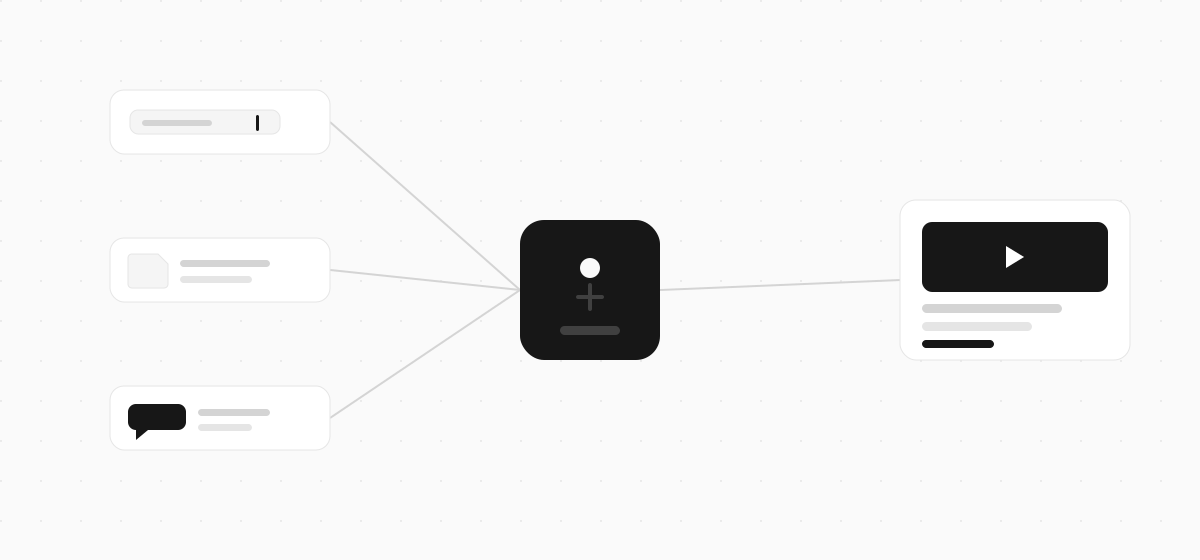
An AI form builder turns a plain-English description into a finished form. You give it the gist, and it does four jobs: writes the questions, picks the right field type for each one, orders them into a flow, and drafts the copy - welcome screen, buttons, thank-you message.
The pitch is speed. A form that took twenty minutes of clicking now takes one sentence and a quick edit.
The catch is in that last bit. What you get back is a strong first draft, not a finished form. That matters, and it's worth knowing before you trust the output - more on where it falls short below.
The 3 ways to build a form with AI
There isn't one "AI form builder" button any more. Depending on what you're starting from, there are three routes, and they're genuinely different - not the same thing with a different logo.
| Route | Best when | What you do |
|---|---|---|
| From a prompt | Starting from scratch | Describe the form in a sentence, then edit the draft |
| From questions you have | You've already written them | Paste them in and let AI structure the form |
| From your AI assistant | You're already in Claude or ChatGPT | Connect a form builder and ask for it in chat |
The rest of this guide takes each one in turn.
Way 1: Build a form from a prompt
This is the route most people mean. You open an AI form builder, type what you want, and it generates the form. Jotform, Fillout, and Cognito Forms all work this way, and so does Clipform.
The whole thing is three moves:
- Write a clear prompt. Name who's filling it out, what you want to learn, and how long it should be. "A feedback form" is too vague. "A 5-question post-purchase feedback form for a coffee subscription" gets you something usable.
- Read it back like a respondent. The AI drafts the questions, flow, and copy. Cut any question that won't change what you actually do with the answer. A short form beats a thorough one nobody finishes.
- Edit the details. Swap a field type, add an option, reorder a question. This is the "quick edit" the speed pitch quietly depends on.
The quality of the form tracks the quality of the prompt. Vague in, vague out. Our guide to the AI form builder goes deeper on what these tools do well and where they cut corners.
Way 2: Build a form from questions you already have
If you've already written your questions - in a doc, a spreadsheet, an old form - you don't have to retype them into a prompt from memory.
Some builders let you upload a Google Doc or PDF and turn it straight into a form. Google Forms does this with Gemini (here's how Google's AI form building works and where it stops). With a prompt-based tool, the move is simpler: paste your existing questions into the prompt and let the AI structure them into fields and a flow.
This is often the most reliable way to use AI here. Turning content you've already written into a tidy form is an easier job than inventing good questions from a one-line brief, so the output needs less editing.
Way 3: Build a form from inside Claude or ChatGPT
The newest route skips the form builder entirely. You connect a form builder to your AI assistant once, then build forms by chatting - no separate app to open, no login mid-task.
It works through a connector, built on an open standard called MCP (here's what MCP is in plain English). Clipform has one you add to Claude by URL:
https://mcp.clipform.io
Add it, sign in to Clipform, and you can ask for a form in plain English:
Create a customer feedback form with a short video intro, a multiple choice question about what they bought, and an open question asking what we could do better. Finish with a thank-you screen.
Claude reads that, builds the whole form in your Clipform account, and hands back a link to try. You keep refining in the same chat - "add narration to each question", "make question two multiple choice" - and each message updates the form in place. There's a full walkthrough in the docs if you want the screenshots.
Here's the kind of form that comes out. This is a real Clipform, the same shape the AI builds when you ask:
Try a form built by AI
A short feedback form with a video question, built on Clipform.
Give it a go - your answers won't be stored.
Copy this templateTry a form built by AI
A short feedback form with a video question, built on Clipform.
Give it a go - your answers won't be stored.
Where AI form builders fall short
AI gets you most of the way there, fast. But "most of the way" hides two gaps worth knowing before you rely on the output.
First, it's a draft, not a finished form. Nearly every review of these tools lands on the same point: the AI output is a strong starting point you then have to edit. Read it back, trim it, and fix the order before anyone sees it.
Second, and bigger: almost every AI form builder hands you the same thing - a page of text boxes. That's fine for collecting an email. It's a waste when you actually want people to say something.
A text box gets you a typed sentence. It doesn't get you a tone of voice, a face, or the detail people add when they're talking instead of typing. When every tool generates the same flat text form, the form itself stops being a differentiator - what you ask, and how you ask it, is where the real difference lives.
Make it a form worth sending: go video-first
Here's the fix, and it's the reason it matters which tool you point the AI at. A video-first form builder generates the same form from the same prompt - but the questions can play as a short video or voiceover, and people can answer with video, audio, or text.
Same one-sentence speed. A very different form at the end.

Typeform's Data On Data report analysed 2.6 million forms and 568 million submissions. Forms that included images or video saw a 120.6% increase in completion rates over forms that didn't. So video isn't a trade of convenience for a nicer experience. You keep the speed, and more people finish.
With Clipform, any question can be a recorded clip or an AI voiceover, so the form has a face or a voice without you having to be on camera. Answers come back transcribed automatically, so you can skim the text and click into the clip when something's worth watching. That's the same one-question-at-a-time feel as a conversational form, just with AI doing the first draft.
A better prompt makes a better form
However you build it, the form only comes out as good as the brief you give it. Hand the AI three things every time:
- Who's filling it out - customers, job applicants, event guests
- What you want to learn - the one thing the form is really for
- How long it should be - "5 questions", not "a form"
And if you're using a video-first builder, name the question you want on camera. "One video question asking what made them subscribe" tells the AI which answer you care about most, so it builds around it instead of burying it.
FAQ
Can you build a form with AI for free?
Yes. Many AI form builders generate a form from a prompt on a free tier, Clipform included. Google Forms' Gemini feature is the exception - it needs a paid Google Workspace or AI plan, or free Google Workspace Labs access in some regions.
Can AI build a form from a PDF or document?
Some tools can. Google Forms builds a form from a Doc or PDF with Gemini, and a few others import a PDF. With a prompt-based builder, you paste your existing questions into the prompt instead, and the AI structures them into a form.
Can I build a form with ChatGPT or Claude?
Yes, through a connector. You add a form builder's connector to the assistant, describe the form in chat, and it builds it in your account. Clipform's connector adds to Claude by URL and works in ChatGPT too, because both speak the same open standard.
Can AI build a form with video questions?
Most AI form builders can't - they only produce text forms. A video-first builder like Clipform can make any question a recorded or AI-narrated video, with respondents answering on camera, all generated from the same plain-English prompt.
Is an AI-built form ready to send as-is?
Treat it as a first draft. The questions, flow, and copy are a strong starting point, but read it back and trim before you share it. Cutting the questions that don't earn their place is usually the difference between a form people finish and one they abandon.
Build your first one
Building a form with AI comes down to three moves: describe it from scratch, hand over questions you already have, or ask for it inside the assistant you're already in. All three take a sentence and a minute.
The part that actually decides whether the form works isn't the building - it's what gets built. A wall of text boxes gets ignored. A form that asks on camera and lets people talk back gets finished.
Clipform builds video-first forms from a prompt on a free tier. Describe the one you need, or add it to Claude and ask for it in chat. Either way, you'll have a form to share in about the time it took to read this. If you want the backstory, here's why we built Clipform.